How to use this dashboard
A complete guide to your MHC outreach dashboard: what every page and number means, and how to find exactly what you need — invitations, accepted connections, and the messages sent to each contact.
- 1. The five tabs — and when to use each
- 2. Summary — the one-glance health check
- 3. Senders — your daily working view
- • What every metric means
- • The drawer: clicking into the numbers
- • See invitations sent & pending
- • See who accepted a connection
- • See every message sent to a contact
- • Search & filter by tier
- • Engaged contacts (Handover / Timeline)
- 4. Unipile — live LinkedIn activity
- 5. Intelligence — account by account
- 6. Process — how the engine works
- 7. Frequently asked questions
- 8. Glossary
1. The five tabs — and when to use each
The dashboard has five pages plus this Help page, switched from the dark bar at the top. The highlighted tab is the page you are on.
| Tab | Use it to… |
|---|---|
| Summary | Get the overall health of the campaign in 10 seconds (totals, open/bounce, connections). |
| Process | Understand how the outreach engine works behind the numbers. |
| Intelligence | Drill into a single account: its contacts, tech stack, and status. |
| Senders | Your day-to-day view — per-sender results and the exact messages sent to each contact. |
| Unipile | LinkedIn activity per sending account — invites, connections, DMs and replies. Rebuilt every 15 minutes from the campaign database, like the other pages. |

Everything is read-only: viewing the dashboard never changes anything in the campaign. Pages refresh automatically — Summary, Senders, Unipile and Intelligence are all rebuilt every 15 minutes.
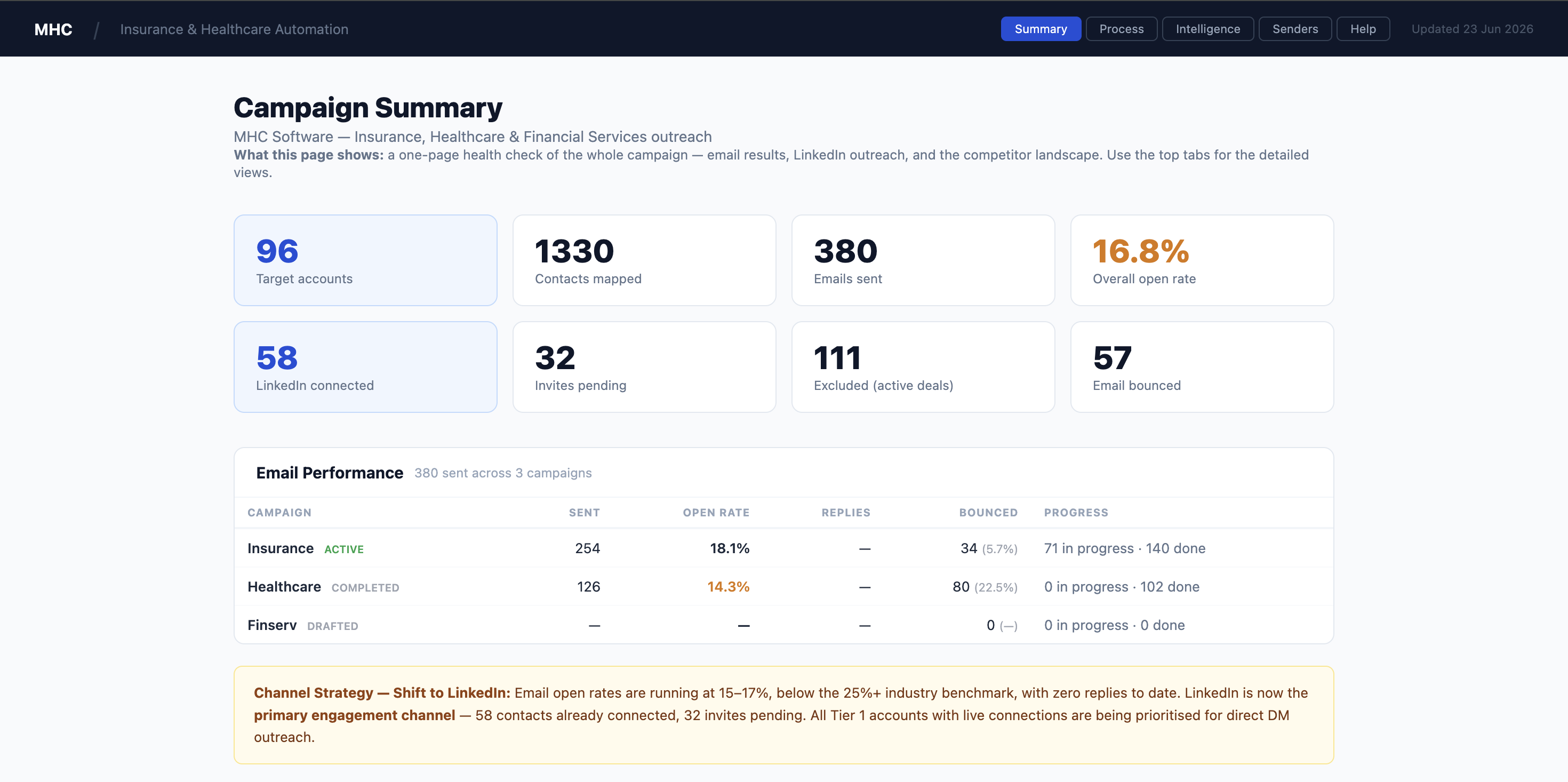
2. Summary — the one-glance health check
This is the campaign's front page, read top to bottom:
- Strategic observations — a short written read on where the campaign stands and what we are doing next.
- Activity (last 30 days) — a graph of invitations, connections and messages over time.
- Headline tiles — LinkedIn replies, connections, invitations sent and emails sent. The LinkedIn replies tile is clickable and jumps to the list of every reply.
- Pipeline — where all the contacts are right now: not yet invited, invited with no answer, invited (awaiting), in conversation, replied, email track, and done/excluded. The buckets add up to the full contact list, give or take one contact who is worked on two campaigns.
- Latest replies — the most recent LinkedIn replies, each with a short excerpt.
- Email performance — results per campaign (Insurance / Healthcare / Finserv): sent, open rate and bounce.
- Competitor landscape — which document-software vendor each account uses.
3. Senders — your daily working view
One section per sender (Jamie Harris · Healthcare, Chris Raffield · Insurance, Rodney Frye · Financial Services). Each section has three blocks: the LinkedIn funnel, the Email results, and the sender's Accounts. A legend at the top of the page reminds you what Tier, DM, Pending and Handover mean.
What every metric means
LinkedIn block — the connection funnel, left to right:
| Metric | Meaning |
|---|---|
| Invites sent | Connection requests sent so far. |
| Pending invites | Requests sent but not yet accepted or declined. |
| Connections | People who accepted — now 1st-degree connections. |
| Acceptance rate | Connections ÷ invites sent. Many invites are still pending, so this rises over time (the note under the tiles shows the exact maths). |
| DM1 / DM2 sent | First and follow-up LinkedIn messages sent after connecting. |
| DM read | Messages the recipient has opened. |
| LinkedIn replies | People who replied on LinkedIn. |
| Ready to invite | Contacts eligible to be invited, not yet invited. |
The A/B invitation box compares acceptance with vs without a personal note. The Email block shows Contacted, Open rate, Replies, Reply rate and Bounce rate for that sender's email campaign. The Accounts table lists their top accounts by number of contacts, with engagement and detected vendor.

The drawer: clicking into the numbers
Key idea: the metric tiles are buttons. Click a number and a panel (a "drawer") slides in from the right listing the exact contacts behind it — Invites sent, Pending invites, Connections, DM1/DM2 sent, DM read, LinkedIn replies, Ready to invite. (Acceptance rate is a percentage, so it has no list.) Close the drawer with the × in the corner, the dark area, or the Esc key.
See invitations sent & pending

See who accepted a connection request

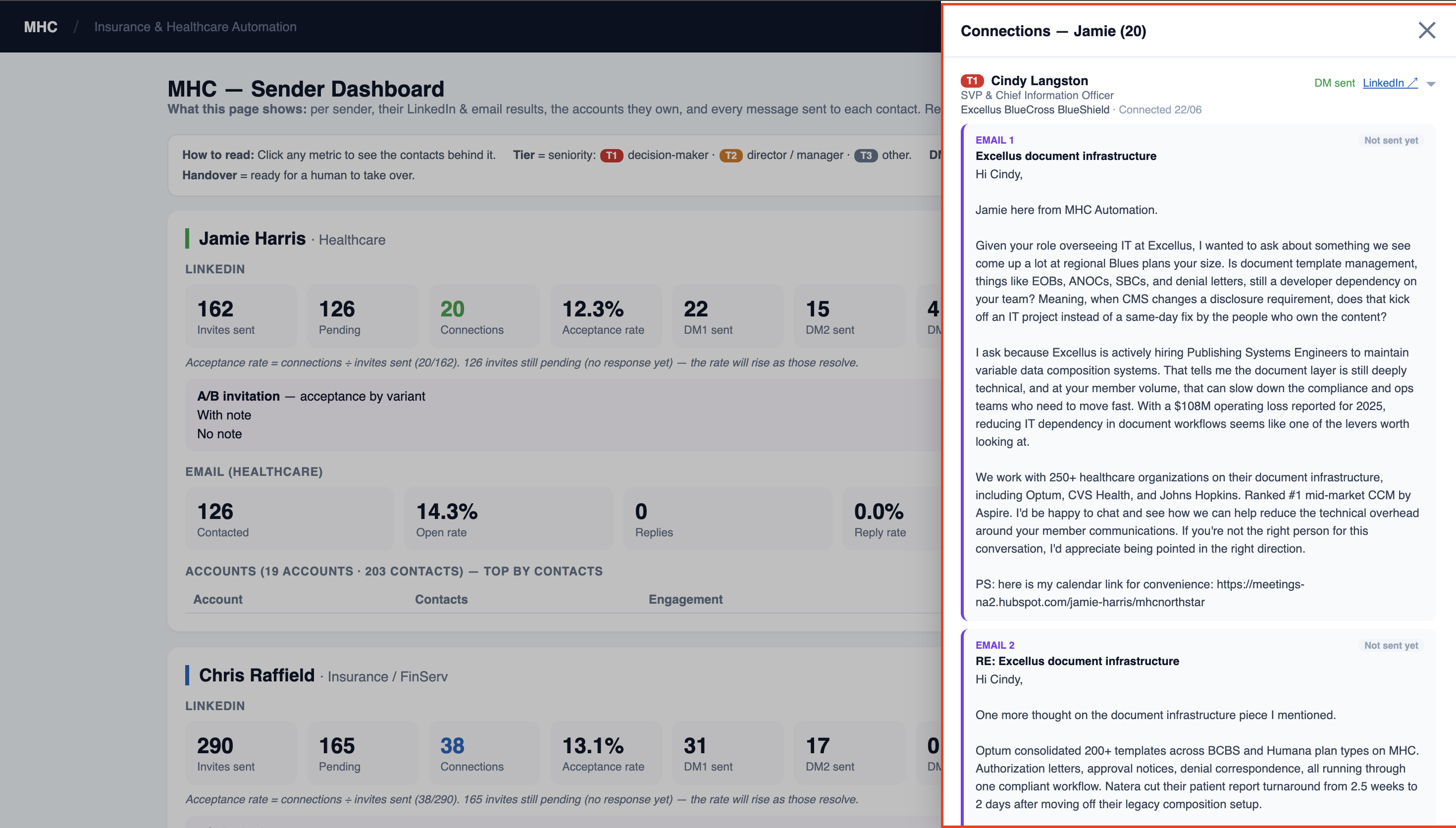
See every message sent to a contact
Search & filter by tier
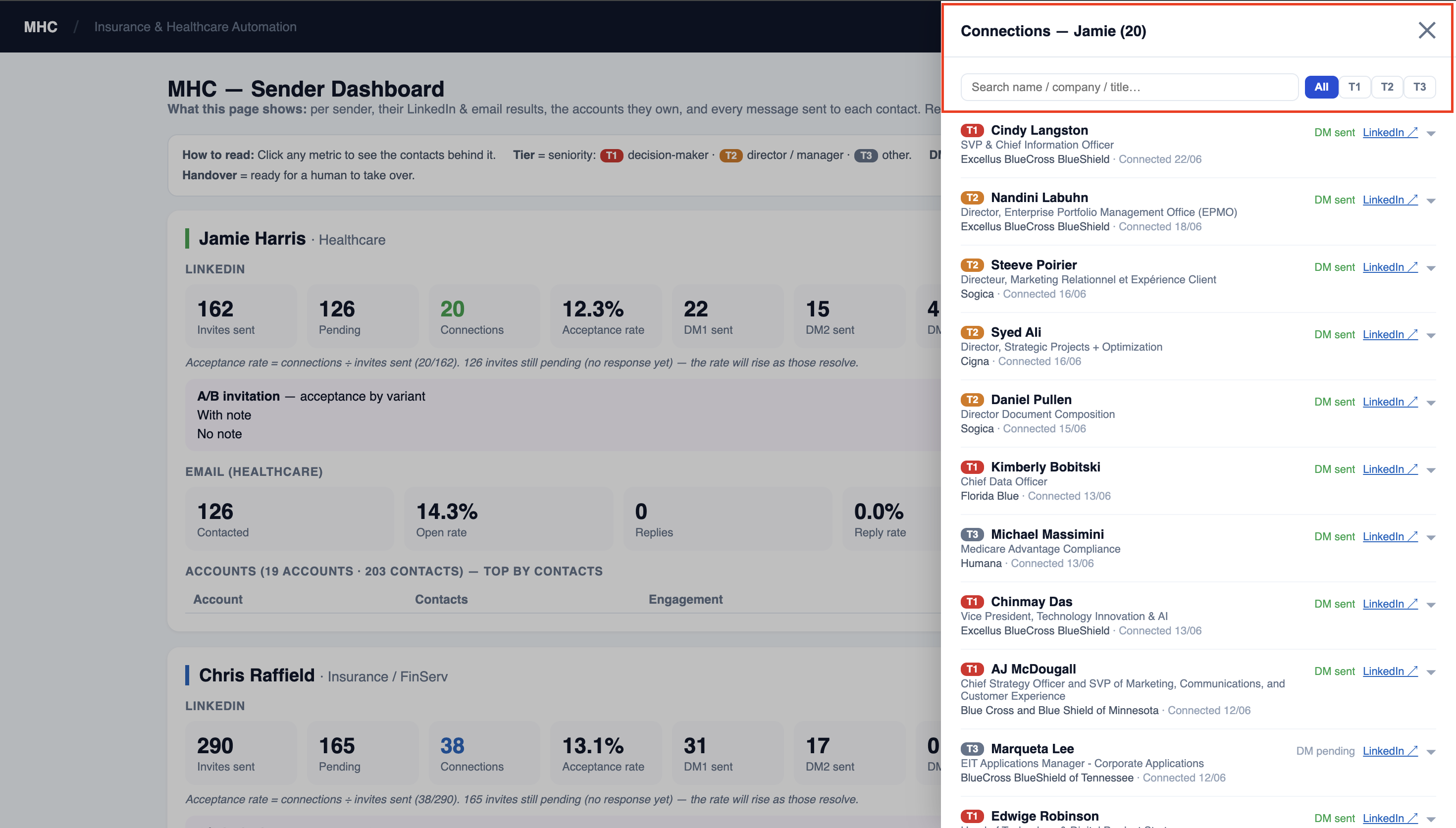
At the top of the Connections drawer, use the search box (name, company or title) and the All / T1 / T2 / T3 buttons to narrow the list — for example, show only T1 decision-makers who accepted.
Engaged contacts (Handover / Timeline)
Below the sender blocks is a single Engaged contacts card with two tabs:
- Handover — contacts for a human to take over: they replied, or received the follow-up with no reply. Each row shows the last real activity date.
- Timeline — for each engaged contact, the unified history of every email and LinkedIn touch in date order.
The full list of people who accepted is reached by clicking the Connections tile in each sender block.
4. Unipile — live LinkedIn activity
Unipile is the per-account LinkedIn view (Chris, Jamie and Rodney), rebuilt every 15 minutes from the campaign database. Use it to check what actually went out today and the latest replies.
- Headline tiles — invites sent, connections, DMs sent and LinkedIn replies for the whole campaign. The replies tile jumps to the list of replies.
- Per-sender funnel — invites → connections → DMs sent → replies for each sender, plus today's pacing against the daily invite cap.
- Latest replies, a 30-day activity graph, and a recent actions feed of the most recent sends.
The Summary and Senders pages read the same underlying data but refresh less often, so a small difference between them and Unipile just means Unipile is a few minutes fresher.
5. Intelligence — account by account
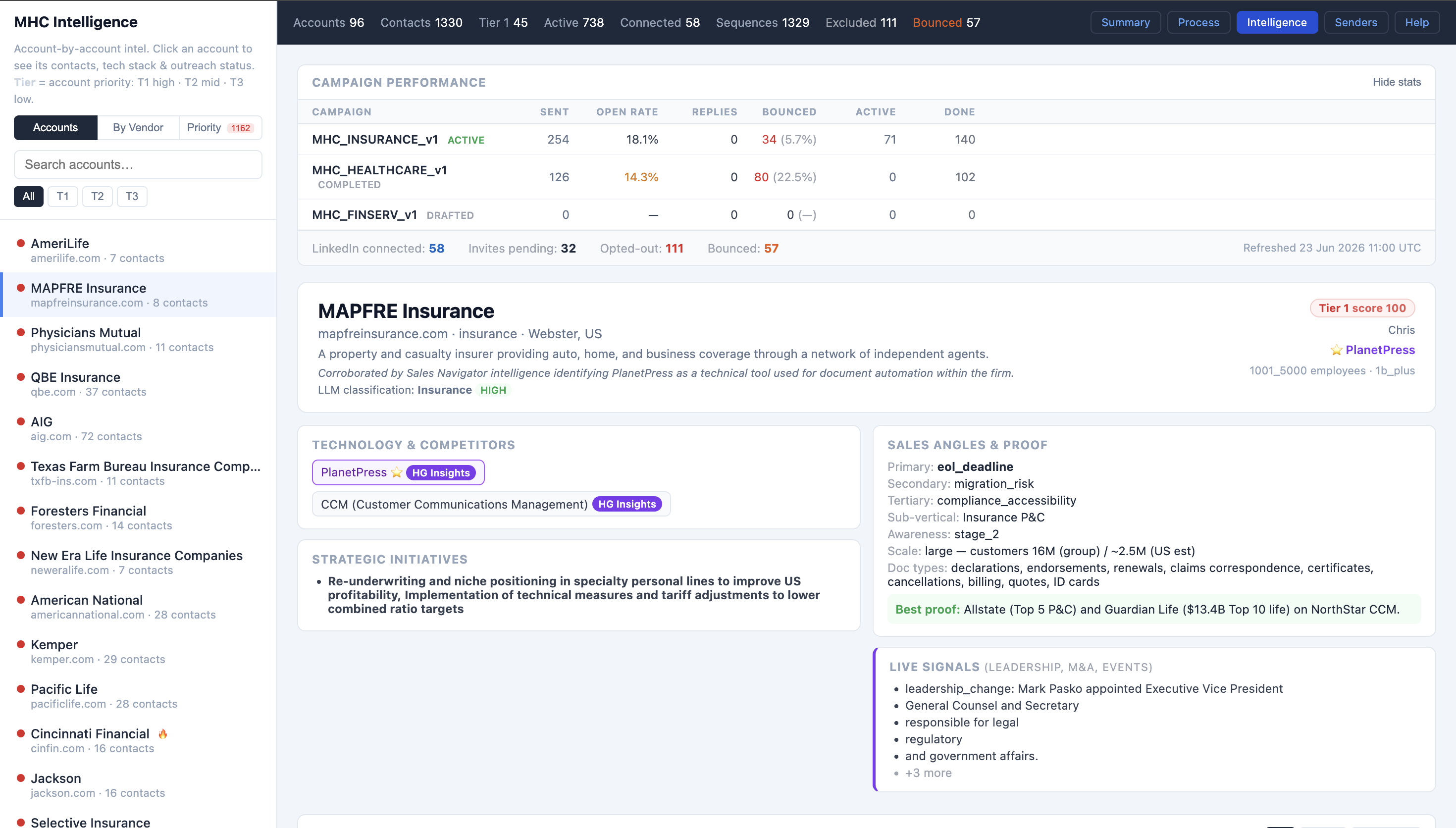
This page is for going deep on one company. Pick an account from the left list (or search it) to see its full profile on the right.
Three modes at the top switch how the left list is organised:
- Accounts — alphabetical list of all accounts (with the T1 / T2 / T3 filter).
- By Vendor — grouped by the document software each account uses.
- Priority — the recommended order to work, highest-value first.
For a selected account you see its tier, contacts, technology & competitors, sales angles, strategic initiatives, and recent signals.
6. Process — how the engine works
A read-only overview of the whole outreach process: data research and consolidation, content creation, the email (3-touch) and LinkedIn (3-message) sequences, the multi-sender rules, and the tools used (SmartLead for email, Unipile for LinkedIn). Read it once to understand what runs behind the numbers; you won't need it day to day.
7. Frequently asked questions
- Where do I see who accepted my connection requests?
- Senders tab → click the Connections tile for that sender. For the freshest view, the Unipile tab lists connections and replies in real time.
- How do I know what was actually sent to a specific person?
- Open a drawer, click that person's row → you see every email and LinkedIn message, each marked sent (with date) or not yet sent.
- Why are so many invitations "Pending"?
- LinkedIn invitations often take days or weeks to be accepted. Pending simply means "sent, no answer yet" — the acceptance rate rises as these resolve.
- Why is the email bounce rate higher on some campaigns?
- Large insurers and health plans run strict email security that blocks cold email at the gateway. That is expected for this audience — it's why LinkedIn is the primary channel and bounced contacts are automatically moved to LinkedIn.
- Do leads who left their company still count?
- No. Contacts verified as having left their target company are excluded from all the numbers.
- Is the data live?
- Yes. Summary, Senders, Unipile and Intelligence are all rebuilt every 15 minutes. The timestamp is shown at the top right of each page.
8. Glossary
- Invite / Connection request
- A LinkedIn request to connect, sent by a sender.
- Pending
- An invitation sent but not yet accepted or declined.
- Connected
- The person accepted the invitation — now a 1st-degree connection.
- DM
- Direct message — a LinkedIn message sent after connecting (DM1 = first, DM2 = follow-up…).
- Acceptance rate
- Connections ÷ invites sent. Rises over time as pending invites resolve.
- Tier (T1 / T2 / T3)
- Seniority: T1 decision-maker, T2 director / manager, T3 other.
- A/B invitation
- Test comparing acceptance of invites sent with vs without a personal note.
- Handover
- A contact ready for a human to take over (replied, or finished with no reply).
- Open / Reply / Bounce rate
- Share of emails opened / replied to / undeliverable.
- Excluded
- Contacts deliberately not contacted (active deal, or verified as having left the company).
- CCM
- Customer Communications Management — the document-software category MHC sells into.